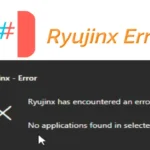
Ryujinx is one of the most popular Nintendo Switch emulators available today. It allows gamers to enjoy Switch titles on Windows, Linux, and macOS with impressive performance and compatibility. However, like any emulator, Ryujinx can sometimes encounter issues such as crashes, black screens, low FPS, audio glitches, controller issues, or games failing to launch.
If you’re facing any of these problems, this comprehensive Ryujinx troubleshooting guide will help you identify the cause and fix it step by step.
Why Does Ryujinx Have Issues?
Before fixing specific issues, it’s important to understand why problems occur.
Common reasons include:
- Outdated Ryujinx version
- Missing or outdated firmware
- Incorrect Ryujinx prod.keys file
- Corrupted game files
- Outdated graphics drivers
- Unsupported hardware
- Incorrect emulator settings
- Shader cache issues
- Conflicting background applications
Identifying the root cause is often the first step toward a successful fix.
System Requirements for Stable Ryujinx Performance
Before troubleshooting, ensure your PC meets the recommended requirements.
Minimum Requirements
- Windows 10/11, Linux, or macOS
- Intel Core i5 or Ryzen 5 processor
- 8GB RAM
- GPU supporting Vulkan or OpenGL
Recommended Requirements
- Intel Core i7 or Ryzen 7
- 16GB RAM or more
- NVIDIA GTX 1660 or better
- AMD RX 5600 XT or better
- SSD storage
Troubleshooting Common Ryujinx Issues (Complete Fix Guide)
1. Ryujinx Won’t Open or Launch
Common Causes
- Corrupted installation files
- Missing system dependencies
- Antivirus interference
- Damaged configuration files
Solutions
- Download the latest Ryujinx version.
- Run Ryujinx as Administrator.
- Temporarily disable antivirus software.
- Delete the Ryujinx configuration folder. Corrupted configuration files may prevent Ryujinx from launching properly.
Navigate to:AppData\Roaming\Ryujinx
Backup your files and remove the configuration folder. - Reinstall Microsoft Visual C++ Redistributables.
- Restart your computer.
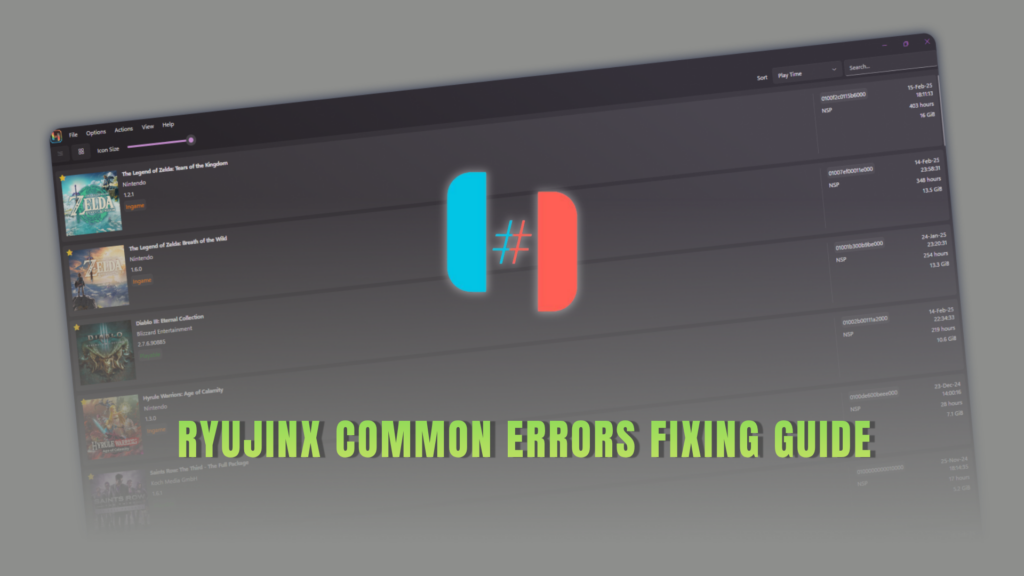
2. Games Not Showing in Ryujinx
Sometimes games are correctly dumped, but do not appear inside the emulator.
Fixes
- Verify the game directory path.
- Ensure files are in XCI or NSP format.
- Refresh the game list.
- Re-add the game folder.
- Check if the game dump is complete.
A damaged game dump often prevents Ryujinx from detecting the title.
3. Ryujinx Crashing When Launching Games
If Ryujinx closes immediately after starting a game, several factors could be responsible.
Common Causes
- Outdated firmware
- Missing keys
- Corrupted shader cache
- Graphics driver issues
Solutions
- Update Firmware
- Update Graphics Drivers
- Clear Shader Cache
Navigate to:Ryujinx > Right Click Game > Cache Management - Verify Game Files
4. Black Screen After Launching a Game
Sometimes games start but remain stuck on a black screen.
Common Causes
- Missing firmware
- Incorrect graphics settings
- Broken shader cache
- Unsupported game version
Fixes
- Update Firmware
- Switch Graphics Backend. Try changing between:
- Vulkan
- OpenGL
- Clear Shader Cache
- Test Another Game
5. Low FPS and Poor Performance
Performance issues are common on lower-end PCs.
Common Causes
- Weak CPU
- Background applications
- Shader compilation
- Insufficient RAM
Fixes
- Use Vulkan
- Enable PPTC
- Close Background Programs
- Lower Resolution Scaling
- Keep Drivers Updated
- Use High-Performance Power Mode.
- On laptops, select:
Power Options > High Performance
- On laptops, select:
6. Controller Not Working
Ryujinx supports many controller types, including:
- Xbox Controllers
- PlayStation Controllers
- Nintendo Switch Pro Controllers
- Third-party controllers
Troubleshooting Steps
- Reconnect Controller
- Configure Input Settings
- Navigate to:
Options > Settings > Input - Select the correct controller profile.
- Navigate to:
- Test Controller in Windows
- Update Controller Drivers
7. Firmware Not Detected
Firmware installation errors are common among new users.
Typical Error Messages
- Missing firmware
- Firmware not found
- Required system version not installed
Fix
Install firmware properly through:
Tools > Install FirmwareEnsure the firmware package is complete and not corrupted.
8. Prod.Keys Errors
Ryujinx requires valid encryption keys to function.
Symptoms
- Games won’t load
- Missing keys error
- Title key warnings
Solution
Verify that your prod. keys file is:
- Correctly dumped
- Up to date
- Placed in the proper keys folder
Incorrect keys are one of the most common causes of launch failures.
9. Audio Crackling or Distorted Sound
Symptoms
- No sound
- Crackling audio
- Delayed audio
- Audio skipping
Fixes:
- Check Audio Output Device
- Update Audio Drivers
- Reduce System Load
- Disable Audio Enhancements
- Disable:
- Spatial audio
- Sound effects
- Third-party audio enhancements
10. Shader Compilation Stutter
Why It Happens
When new effects appear in a game, Ryujinx compiles shaders.
This can cause:
- Temporary freezes
- Frame drops
- Short stutters
Fixes:
- Build Shader Cache
- Keep Shader Cache Enabled
- Avoid Deleting Cache Frequently
11. Save Data Problems
Symptoms
- Missing save files
- Save corruption
- Progress lost
Fixes:
- Backup Saves Regularly
- Avoid Forced Shutdowns
- Check Storage Health
12. Graphical Glitches and Visual Bugs
Common Issues
- Flickering textures
- Missing objects
- Broken shadows
- Rendering artifacts
Solutions:
- Update GPU Drivers
- Disable Graphics Mods
- Try a Different Backend
- Switch
- Vulkan → OpenGL
- OpenGL → Vulkan
- Check Game Compatibility
12. Memory Errors and Out-of-Memory Crashes
Symptoms
- RAM usage spikes
- Emulator freezes
- Out-of-memory warnings
Solutions
- Upgrade RAM
- 16GB RAM minimum
- 32GB for heavy multitasking
- Close Background Applications
- Increase Virtual Memory
Frequently Asked Questions (FAQs)
Does Ryujinx support game updates and DLC?
Yes, Ryujinx supports both game updates and DLC. However, improperly installed or incompatible updates can sometimes cause crashes or performance problems.
Is Vulkan better than OpenGL in Ryujinx?
For most users, Vulkan offers better performance, faster shader compilation, and improved stability compared to OpenGL. However, some games may perform better with OpenGL, so it’s worth testing both options if you encounter problems.
How do I update Ryujinx?
You can update Ryujinx through its built-in updater if available or by downloading the latest version from the official Ryujinx website.
Can outdated mods cause Ryujinx crashes?
Yes. Outdated or incompatible mods are one of the most common causes of crashes, graphical glitches, and startup issues. Disable mods temporarily when troubleshooting.
Final Thoughts
Most Ryujinx issues can be resolved through a combination of updating drivers, maintaining current firmware and keys, using the Vulkan backend, verifying game files, and avoiding incompatible mods. When troubleshooting, change only one setting at a time and test the game after each adjustment. This approach makes it much easier to identify the actual cause of the problem.
With the correct setup, Ryujinx is capable of delivering an excellent Nintendo Switch emulation experience with impressive compatibility, smooth performance, and stable gameplay across a wide range of titles.