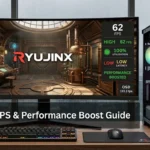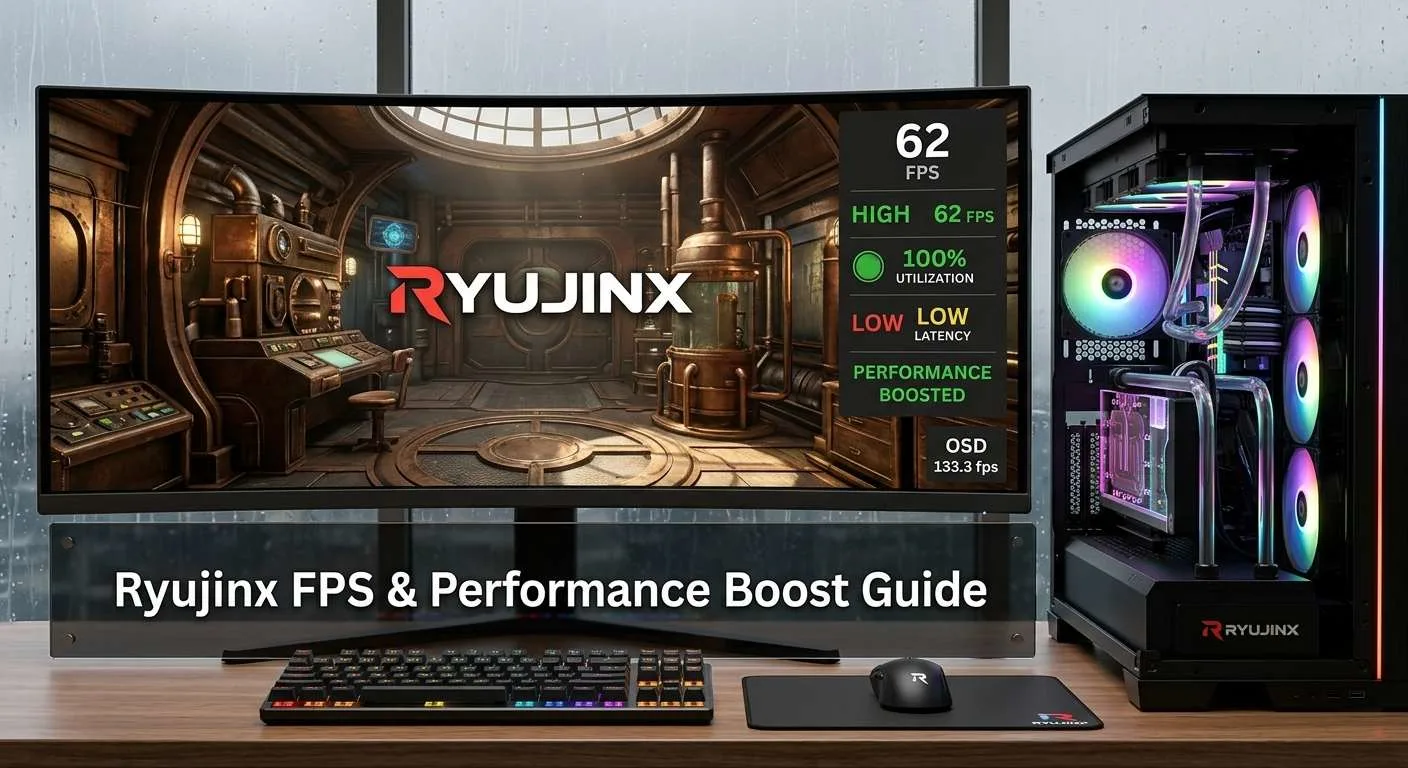
How to Increase FPS in Ryujinx? If you’re experiencing low FPS, stuttering, or lag while playing Nintendo Switch games on Ryujinx, don’t worry. The best way to increase FPS in Ryujinx is to optimise emulator settings, update graphics drivers, enable shader caches, use the Vulkan backend, and reduce unnecessary system resource usage. In most cases, these adjustments can significantly improve Ryujinx’s performance and provide a much smoother gameplay experience.
As someone who has spent countless hours testing Ryujinx across different PC configurations, I’ve found that many FPS issues stem from incorrect settings rather than weak hardware. In this guide, I’ll walk you through the most effective and genuine methods to improve Ryujinx FPS based on real-world experience.
Why Is Ryujinx Running Slow?
Before making changes, it’s important to understand what affects Ryujinx’s performance.
Common causes of low FPS include:
- Weak CPU performance
- Outdated graphics drivers
- Incorrect graphics settings
- Missing shader cache
- Background applications are consuming resources
- High internal resolution settings
- Thermal throttling
- Insufficient RAM
Many users mistakenly assume their graphics card is the primary bottleneck. In reality, Ryujinx is often more CPU-dependent than GPU-dependent.
Also see: 10 Best Nintendo Switch Games for 8-Year-Old Girls (2026 Guide)
How to Increase FPS in Ryujinx
1. Check Your PC Specifications First
The first step in improving FPS is to verify that your hardware meets modern Ryujinx requirements.
Recommended Hardware for Better FPS
| Component | Recommended |
|---|---|
| CPU | Intel Core i5-12400 / Ryzen 5 5600 or better |
| GPU | RTX 3060 / RX 6600 or better |
| RAM | 16GB or more |
| Storage | SSD |
| OS | Windows 10/11 64-bit |
A strong CPU is usually the biggest factor in achieving stable 30 FPS or 60 FPS gameplay.
Games, such as Zelda, Xenoblade Chronicles, Pokémon Scarlet & Violet, and Tears of the Kingdom, place a significant load on the processor
2. Use the Latest Version of Ryujinx
One of the easiest ways to increase FPS in Ryujinx is to keep the emulator updated.
Every new release typically includes:
- Performance improvements
- Bug fixes
- Better game compatibility
- Faster shader compilation
- Reduced stuttering
Using an outdated version may cause unnecessary FPS drops and stability issues.
3. Use Vulkan Instead of OpenGL
One of the biggest FPS improvements comes from selecting the correct graphics backend.
Open:
Options → Settings → Graphics
Choose:
Graphics Backend = Vulkan
Vulkan generally provides:
- Better FPS
- Reduced stuttering
- Faster shader compilation
- Improved GPU utilization
- Lower CPU overhead
For most modern AMD, NVIDIA, and Intel GPUs, Vulkan delivers noticeably smoother gameplay than OpenGL.
4. Enable Shader Cache
Shader compilation is one of the most common causes of stuttering in Ryujinx.
The first time a game loads new effects, Ryujinx must compile shaders. This process can temporarily reduce FPS.
Shader cache helps by storing compiled shaders so they don’t need to be recreated every session.
Benefits include:
- Smoother gameplay
- Reduced micro-stutters
- Faster game loading
- Better frame pacing
Many users notice significant improvements after several hours of gameplay as the shader cache builds.
5. Lower Resolution Scaling
Internal resolution directly impacts GPU workload.
If your FPS is unstable, reduce resolution scaling.
Recommended settings:
| GPU Level | Resolution Scale |
| Entry Level | Native (1x) |
| Mid Range | 2x |
| High End | 3x |
| Enthusiast | 4x |
While higher resolutions improve visual quality, they can dramatically reduce performance.
6. Update Your Graphics Drivers
Outdated drivers can cause performance problems, crashes, and graphical glitches.
Always install the latest drivers from your GPU manufacturer.
Updated drivers often include:
- Vulkan optimizations
- Better shader handling
- Emulator-specific fixes
- Performance improvements
- Bug fixes
Many users gain noticeable FPS improvements simply by updating drivers.
Driver updates are especially important after major Ryujinx releases.
7. Close Background Applications
Background software can consume valuable CPU cycles and RAM.
Before launching Ryujinx, close:
- Web browsers
- Discord overlays
- RGB software
- Streaming applications
- Video editors
- Antivirus scans
- Unnecessary startup programs
This frees resources for the emulator and reduces random frame drops.
A clean Windows environment often results in smoother gameplay.
8. Enable High Performance Power Mode
Windows power settings can affect emulator performance.
Navigate to:
Control Panel → Power Options
Select:
High Performance
or
Ultimate Performance
Benefits include:
- Higher CPU clock speeds
- Reduced throttling
- Faster boost behavior
- Improved frame stability
Many laptops run Ryujinx significantly slower when using Balanced or Battery Saver modes.
9. Use the Latest Ryujinx Version
Ryujinx developers continuously improve:
- Performance
- Shader compilation
- Memory management
- Graphics rendering
- Game compatibility
Newer versions often deliver better FPS than older builds.
Performance gains may not seem huge on paper, but cumulative improvements can noticeably enhance gameplay.
Always test the latest stable version before troubleshooting performance issues.
10. Disable Unnecessary Mods
Some mods improve performance, but others increase system load.
Examples include:
- High-resolution texture packs
- 4K mods
- Visual enhancement mods
- Heavy reshade effects
These modifications can reduce FPS considerably.
If performance becomes unstable, temporarily disable all mods and test the game again.
This helps identify whether a specific mod is causing slowdowns.
11. Optimise RAM Usage
Modern Nintendo Switch games can consume significant memory.
Recommended RAM:
- Minimum: 8GB
- Recommended: 16GB
- Ideal: 32GB
If your system constantly uses 90% or more RAM, performance may suffer.
Close memory-intensive applications and ensure adequate free memory before launching Ryujinx.
This is particularly important for online games with large open worlds.
Also see: Ryujinx/Ryubing Prod Keys and Title Keys v22.1.0 Download
Ryujinx Nintendo Firmware Download (Latest Version)
Best Ryujinx Graphics Settings for Maximum FPS
The following settings work well for most systems:
| Setting | Recommended Value |
| Graphics Backend | Vulkan |
| Resolution Scale | Native or 2x |
| Anisotropic Filtering | Auto |
| Aspect Ratio | 16:9 |
| Shader Cache | Enabled |
| VSync | Disabled (optional) |
| PPTC | Enabled |
These settings provide a good balance between image quality and performance.
Most users report smoother gameplay after applying them.
Common FPS Problems and Fixes
1. FPS Drops During Gameplay
Usually caused by:
- Shader compilation
- CPU bottlenecks
- Background applications
Allow shaders to build and reduce system load.
2. Stuttering Despite High FPS
Possible causes:
- Incomplete shader cache
- Driver issues
- Storage bottlenecks
Using an SSD often helps.
3. Low GPU Usage
This commonly indicates:
- CPU limitation
- Power-saving settings
- Driver configuration issues
Ryujinx is frequently CPU-bound rather than GPU-bound.
Also see: Ryujinx Troubleshooting Guide: Fixing Common Errors and Crashes
Does Better Hardware Increase Ryujinx FPS?
Absolutely.
Ryujinx performance scales significantly with stronger hardware.
Biggest FPS Improvements Come From
- Faster CPU
- Faster RAM
- Better GPU
- SSD Storage
Among these, CPU upgrades usually provide the largest FPS gains.
Also see: Uzuy Compatibility List (2026): Complete Nintendo Switch Game Compatibility Guide
What Is an XCI File? Complete Beginner’s Guide to Nintendo Switch XCI Files
Frequently Asked Questions
Is Vulkan better than OpenGL in Ryujinx?
Yes. Vulkan generally offers higher FPS, lower CPU usage, and smoother shader compilation on most modern systems.
Does more RAM improve Ryujinx FPS?
Additional RAM can help reduce stuttering and improve overall system responsiveness, especially in demanding games.
Why does Ryujinx stutter even when the FPS is high?
High FPS stuttering is usually caused by shader compilation, driver issues, or inconsistent frame pacing rather than raw performance limitations.
Why is my CPU usage so high in Ryujinx?
Nintendo Switch emulation is highly CPU-intensive. Many games rely heavily on processor performance, making CPU usage significantly higher than GPU usage.
Final Thoughts
Increasing FPS in Ryujinx is usually a combination of proper settings, updated drivers, strong CPU performance, and efficient system optimization. For most users, switching to Vulkan, enabling shader cache, reducing resolution scaling, and using High Performance power mode provide the largest FPS improvements.
If you’re aiming for the smoothest Nintendo Switch emulation experience in 2026, focus first on CPU performance, shader cache optimization, and graphics settings. These changes alone can dramatically improve gameplay and reduce stuttering in demanding Switch titles