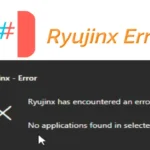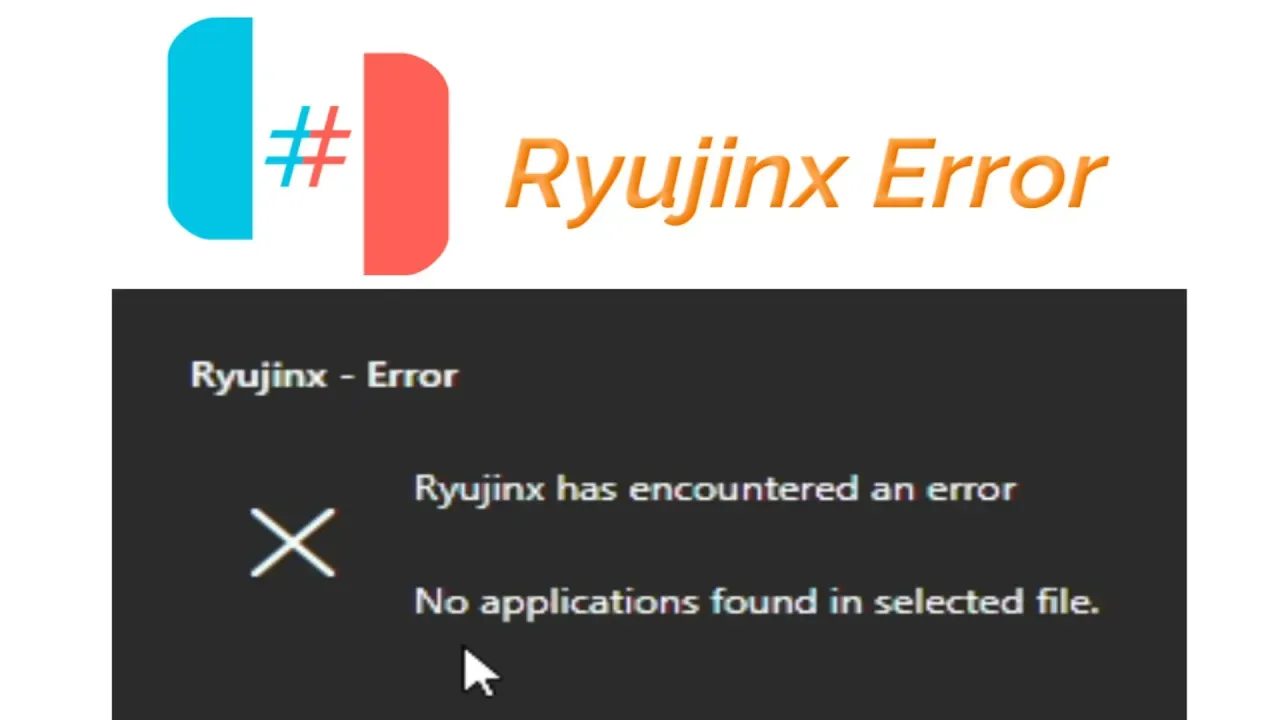
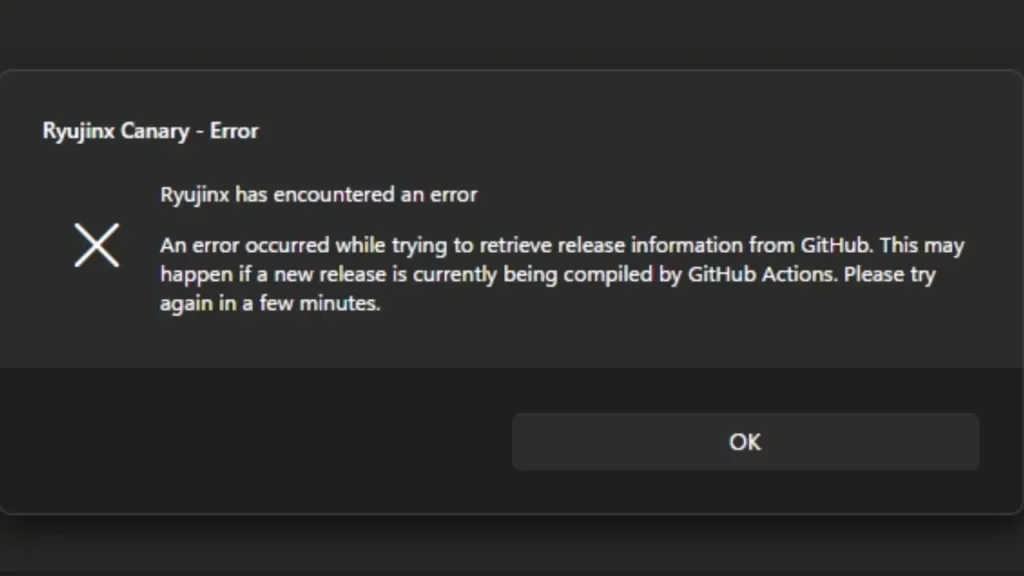
Ryujinx is one of the most popular Nintendo Switch emulators, but like any software, it can occasionally encounter issues. If you’re facing the “Ryujinx has encountered an error” message, don’t worry—you don’t necessarily need advanced technical skills to fix it.
In many cases, a simple update, configuration change, or file repair can solve the issue. This guide will walk you through the practical steps needed to get Ryujinx working again.
Why Does Ryujinx Show the “Has Encountered an Error” Message?
Ryujinx can crash or display error messages for several reasons, including:
- Outdated emulator files
- Corrupted game data
- Missing or incorrect firmware
- Invalid prod.keys files
- Graphics driver issues
- Damaged configuration files
- Incompatible mods or cheats
Before trying advanced fixes, it’s important to understand that the error message itself is often a symptom rather than the actual problem.
Also see: How to Setup Uzuy Emulator & Play Nintendo Switch Games on Android
Fix 1: Update Ryujinx to the Latest Version
One of the most common solutions to “Ryujinx has encountered an error” is simply updating the emulator.
Steps:
- Open Ryujinx.
- Check for available updates.
- Download and install the latest version.
- Restart your computer.
- Launch the game again.
Developers regularly release fixes for crashes, compatibility problems, and performance issues.
Fix 2: Verify Your Prod Keys and Firmware
Ryujinx requires valid firmware and encryption keys to function correctly.
Check the Following:
- Firmware is properly installed.
- prod. keys file is current and compatible.
- Keys are placed in the correct Ryujinx folder.
If the keys are outdated, Ryujinx may fail to launch games and display unexpected error messages.
Quick Tip
Whenever a new Nintendo Switch firmware version is released, make sure your Ryujinx installation is updated accordingly.
Fix 3: Update Your Graphics Drivers
Graphics drivers are responsible for rendering games properly. Outdated drivers can trigger crashes and startup errors.
For NVIDIA Users
- Open GeForce Experience.
- Check for driver updates.
- Install the latest Game Ready Driver.
For AMD Users
- Open AMD Software Adrenalin Edition.
- Search for updates.
- Install the newest stable release.
For Intel Users
Download the latest graphics drivers directly from Intel’s support website.
After updating, restart your PC and test Ryujinx again.
Fix 4: Delete the Ryujinx Configuration File
Sometimes the configuration file becomes corrupted after updates or unexpected shutdowns.
How to Reset Ryujinx Settings
- Close Ryujinx completely.
- Navigate to the Ryujinx user folder.
- Locate the configuration file.
- Create a backup copy.
- Delete the original file.
- Launch Ryujinx again.
The emulator will automatically generate a fresh configuration file.
In many cases, this instantly resolves startup issues.
Fix 5: Disable Mods and Cheats
Mods can greatly improve gameplay, but they can also cause crashes.
If the error appeared after installing:
- Texture packs
- Cheats
- FPS mods
- Gameplay modifications
Try disabling them temporarily.
What I Usually Do
Whenever I encounter a new crash, I disable all mods first and test the game in its vanilla state. This quickly reveals whether a modification is causing the problem.
Fix 6: Check for Corrupted Game Files
A damaged game dump can trigger loading errors.
Signs of Corrupted Files
- Black screen on launch
- Infinite loading
- Random crashes
- Error messages before gameplay starts
If possible:
- Remove the game from Ryujinx.
- Verify the game files.
- Re-dump the game from your Nintendo Switch.
- Add the game again.
This often fixes stubborn issues that seem unrelated.
Fix 7: Clear the Shader Cache
Shader cache corruption can lead to graphical glitches and crashes.
Steps
- Open Ryujinx.
- Locate the cache folder.
- Delete shader cache files.
- Restart the emulator.
The next launch may take slightly longer as shaders are rebuilt, but many users report improved stability afterward.
Fix 8: Run Ryujinx as Administrator
Windows permission issues can sometimes prevent Ryujinx from accessing important files.
To Run as Administrator
- Right-click the Ryujinx executable.
- Select “Run as Administrator.”
- Test the emulator again.
You can also permanently enable administrator privileges through the Compatibility tab.
Fix 9: Reinstall Ryujinx Completely
If nothing else works, a clean reinstall can solve hidden issues.
Complete Reinstallation Process
- Backup your save files.
- Uninstall Ryujinx.
- Delete remaining Ryujinx folders.
- Download a fresh copy.
- Reinstall firmware and keys.
- Re-add your games.
This removes corrupted files that may survive a normal update.
Additional Troubleshooting Tips
Here are a few extra fixes worth trying:
- Disable antivirus temporarily.
- Close background overlays such as Discord or MSI Afterburner.
- Ensure Windows is fully updated.
- Check available storage space.
- Verify that your hardware meets emulator requirements.
Small system issues can sometimes cause surprisingly large problems.
Common Error Scenarios and Solutions
| Problem | Possible Fix |
|---|---|
| Ryujinx won’t launch | Update emulator and drivers |
| Black screen | Clear shader cache |
| Game crashes on startup | Verify firmware and keys |
| Error after update | Reset configuration file |
| Random crashes | Disable mods and cheats |
| Performance issues | Update graphics drivers |
Also see: What Is an XCI File? Complete Beginner’s Guide to Nintendo Switch XCI Files
Frequently Asked Questions
Why does Ryujinx keep crashing?
Ryujinx may crash due to outdated drivers, corrupted game files, incompatible firmware, or damaged configuration settings.
Can outdated firmware cause Ryujinx errors?
Yes. Missing or outdated firmware is a common reason for startup failures and game compatibility issues.
Is reinstalling Ryujinx safe?
Yes. A clean reinstallation is often recommended when troubleshooting persistent emulator errors.
Will updating graphics drivers improve performance?
In many cases, updated drivers improve both stability and game performance within Ryujinx.
How do I know if my game file is corrupted?
If only one game consistently crashes while others work normally, the game dump may be corrupted.
Final Thoughts
Learning how to fix “Ryujinx has encountered an error” usually comes down to methodically checking your emulator setup, firmware, keys, graphics drivers, and game files. In my experience, outdated drivers, corrupted settings, and incompatible mods are responsible for most Ryujinx crashes.
The next time you see the error message, don’t panic. Start with the simple fixes first, then work your way through the troubleshooting steps outlined above. In most cases, you’ll have Ryujinx running smoothly again within a few minutes.
By following this guide on How to Fix “Ryujinx has encountered an error”, you can quickly identify the cause and get back to enjoying your favorite Nintendo Switch games without unnecessary frustration.