Mobile Nintendo Switch emulation has improved a lot in recent years, and emulators like Uzuy Android Emulator are becoming popular among gamers who want smoother gameplay and better graphics on Android devices. One of the most important things that can improve performance in Uzuy is installing the correct GPU drivers.
Many users experience lag, low FPS, graphical glitches, crashes, or black screens because they are using outdated or incompatible GPU drivers. Installing optimized GPU drivers can significantly improve stability, reduce stuttering, and provide better graphics quality in supported games.
In this complete guide, you will learn everything about Uzuy Android GPU drivers, how they work, how to install them correctly, and how to choose the best driver for your device.
What Are GPU Drivers in Uzuy Emulator?
GPU drivers are special software components that help your phone’s graphics processor communicate properly with the emulator. In simple words, these drivers control how graphics are rendered during gameplay.
In Uzuy Android Emulator, custom GPU drivers are mainly used for:
- Better FPS
- Improved shader compilation
- Reduced lag and stutter
- Better Vulkan performance
- Fixing graphical glitches
- Improving game compatibility
- Preventing crashes in some games
Without proper GPU drivers, many Switch games may not run smoothly, especially on mid-range Android devices.
Why GPU Drivers Matter in Uzuy Android
The emulator heavily depends on your phone’s GPU power. Even if your processor is strong, poor GPU drivers can cause performance issues.
Here are the main benefits of installing optimized GPU drivers in Uzuy:
- Better Gaming Performance
- Reduced Graphical Bugs
- Faster Shader Compilation
- Improved Vulkan Support
- Better Compatibility
Types of GPU Drivers Used in Uzuy
There are mainly two types of GPU drivers users install in Uzuy Android.
1. Turnip Drivers
Turnip drivers are custom Mesa Vulkan drivers mainly optimized for Adreno GPUs.
Benefits:
- Better Vulkan performance
- Improved FPS
- Reduced crashes
- Better shader handling
These are the most commonly used drivers for Snapdragon devices.
2.System Default Drivers
These are the stock drivers already installed on your phone by the manufacturer.
Sometimes stock drivers work better for certain games, especially on newer flagship devices.
How to Check Your GPU Before Installing Drivers
Before downloading any GPU driver, you must know your device GPU.
Method 1: Use CPU-Z App
Install apps like:
- CPU-Z
- Device Info HW
- AIDA64
Check:
- Processor model
- GPU name
- Android version
Method 2: Check Phone Specifications
Search your device model online and check whether it uses:
- Adreno GPU
- Mali GPU
- PowerVR GPU
Step-by-Step Guide to Install GPU Drivers in Uzuy Emulator
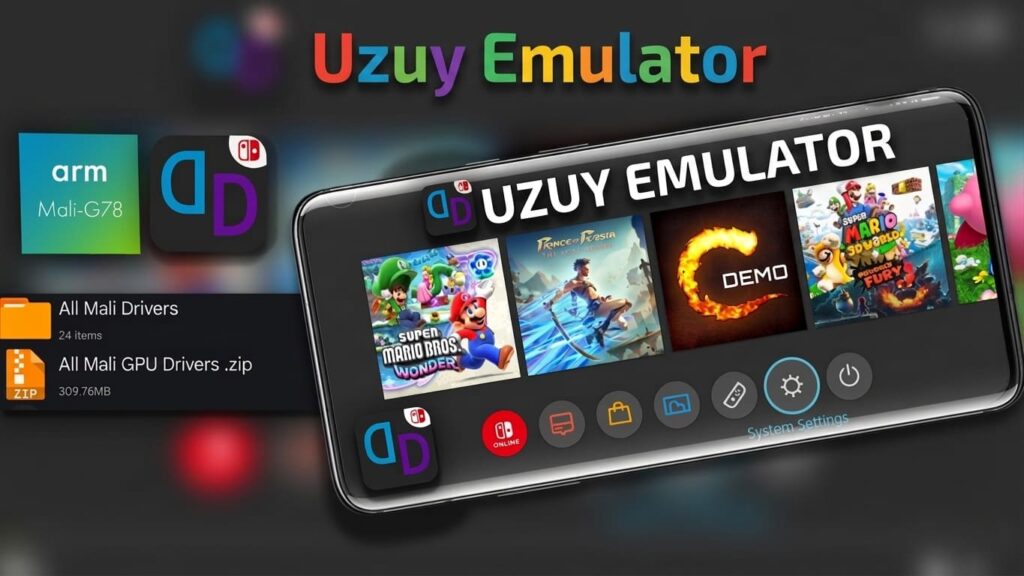
Step 1: Download Compatible GPU Drivers
Download compatible:
- Turnip drivers
- Mesa drivers
- Adreno Vulkan drivers
Make sure the drivers match your GPU version.
Step 2: Open Uzuy Emulator
Launch the emulator on your Android device.
Step 3: Open Graphics SettingsStep 4: Install Driver File
Go to:
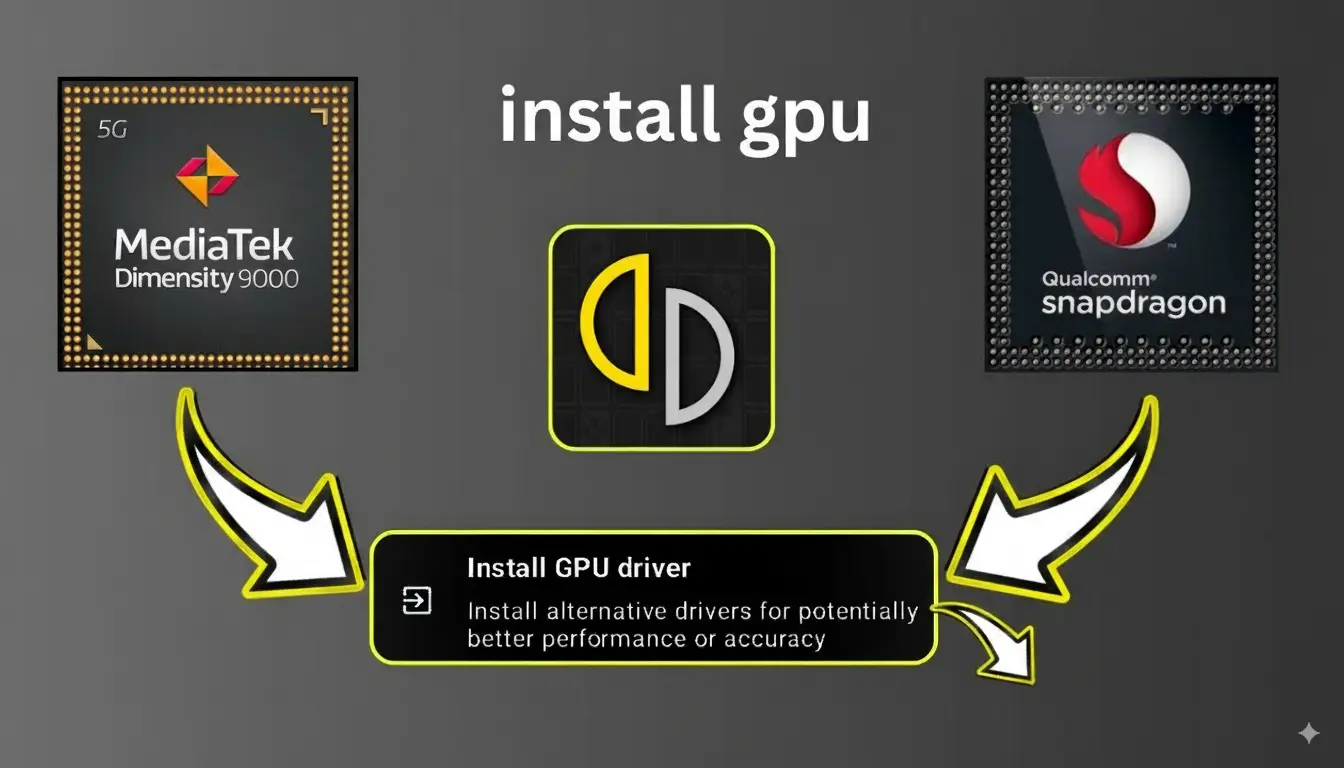
Settings > Graphics > GPU Driver Manager
Step 4: Install Driver File
Tap: Install Driver
Then select the downloaded .zip or .turnip driver file.
Step 5: Restart Uzuy Emulator
Close and reopen the emulator after installation.
Step 6: Test Games
Launch your Nintendo Switch games and check:
- FPS improvements
- Shader stability
- Reduced lag
- Better graphics rendering
Best Uzuy Emulator Graphics Settings
Best Uzuy Emulator Graphics Settings
Renderer, Use:
VulkanVulkan generally offers the best performance for Switch emulation.
Resolution
Recommended:
- 1x resolution for low-end devices
- 0.75x for extra FPS
- 2x for high-end Snapdragon devices
Shader Cache
Enable shader cache for smoother gameplay.
Disk Shader Cache
Turn ON:
Disk Shader Cache
This reduces shader compilation stutter.
Async Shaders
Enable:
Asynchronous Shaders
to improve performance in many games.
Common Uzuy GPU Driver Problems and Fixes
1. Black Screen After Installing Drivers
Fix
- Reinstall compatible driver
- Use older Turnip version
- Clear emulator cache
2. Games Crash on Startup
Fix
- Update emulator
- Switch to official Qualcomm driver
- Disable aggressive graphics hacks
3. No FPS Improvement
Fix
- Lower resolution
- Use performance mode
- Close background apps
4 Texture Flickering or Broken Graphics
Fix
- Try another Turnip version
- Disable certain GPU hacks
- Update drivers
Tips for Better Uzuy Emulator Performance
- Use Performance Mode
- Keep Device Cool
- Use Updated Firmware and Prod Keys
- Avoid Background Apps
- Keep Drivers Updated
Also see: How To Convert XCI To NSP: Switch Games (Complete Guide)
Skyline Production Keys and Title Keys v22.1.0 Download [Latest]
Frequently Asked Question
Do Mali GPU phones support custom drivers?
Support for Mali GPUs is limited compared to Adreno GPUs, and performance improvements may vary.
Can GPU drivers increase FPS?
Yes, optimized GPU drivers can improve FPS stability, reduce shader stutter, and enhance rendering performance.
Which GPU is best for Uzuy Emulator?
Adreno GPUs found in Snapdragon devices generally offer the best compatibility and performance.
Final Thought
Installing GPU drivers in Uzuy Android Emulator can dramatically improve your gaming experience. The right driver helps reduce lag, improve graphics quality, and increase FPS in many Nintendo Switch games.
For most users, especially those with Snapdragon processors and Adreno GPUs, custom Turnip drivers provide the best results. However, not every driver works perfectly for every device, so testing different versions may be necessary.
The most important thing is to use trusted driver files, keep your emulator updated, and combine drivers with optimized graphics settings for the best performance possible.