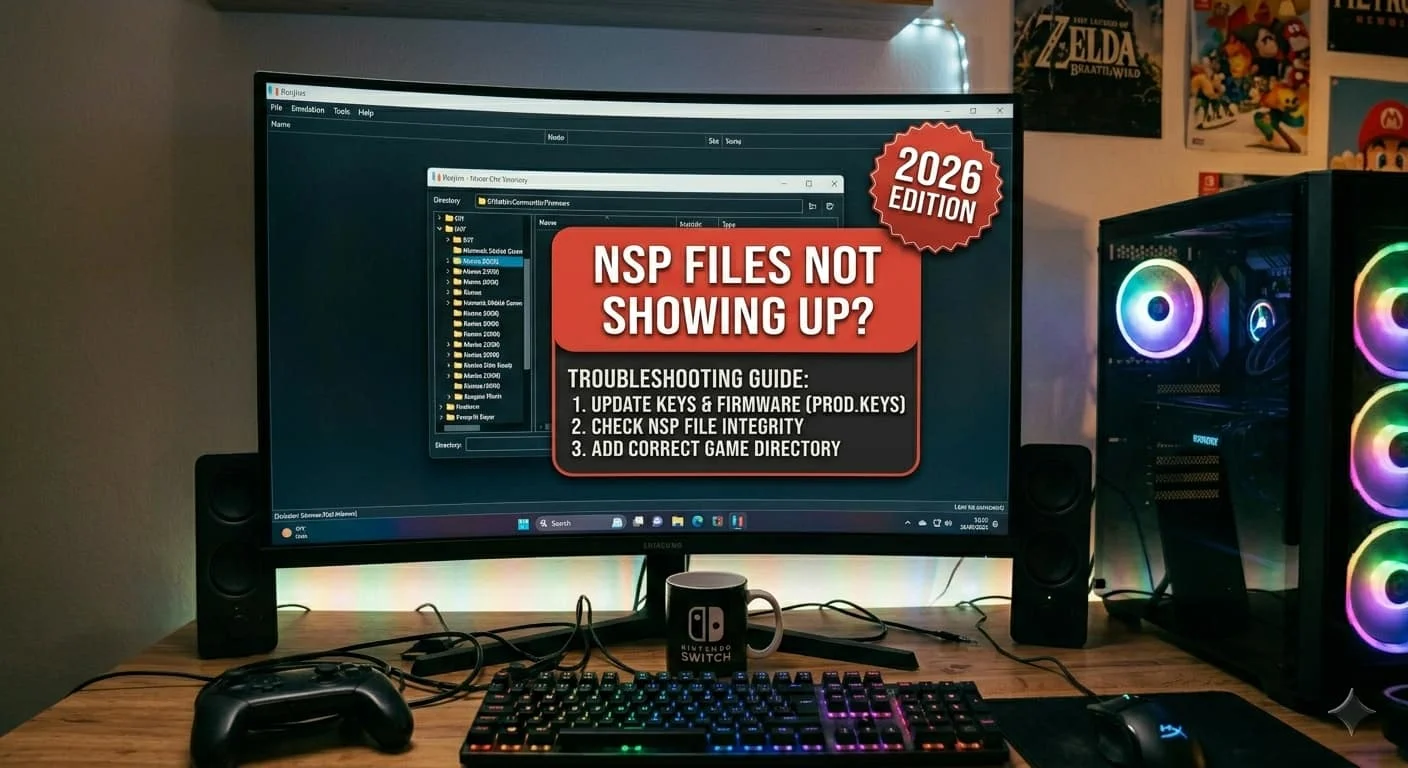
If your NSP files are not showing up in Ryujinx, the most common causes are incorrect game directories, corrupted NSP files, missing firmware, outdated Ryujinx versions, or improperly dumped game files. In most cases, re-adding the game folder and verifying the NSP file fixes the issue.
Many Ryujinx users encounter a frustrating problem where their Nintendo Switch NSP games do not appear in the game library, even after adding them to the Nintendo Switch emulator. Whether you are a beginner or an experienced emulator user, this issue can prevent you from launching your favourite Nintendo Switch Games.
In this complete guide, you’ll learn why NSP files are not showing up in Ryujinx, how to fix the problem, and how to prevent it from happening again
What Is an NSP File?
An NSP (Nintendo Submission Package) file is the installation package format used by Nintendo Switch games, updates, and DLC content. Ryujinx supports NSP files and can load them directly when they are properly dumped from your own Nintendo Switch console.
Unlike XCI files, which are cartridge dumps, NSP files function more like digital game installations. When Ryujinx scans your game directory, it checks whether the NSP file is valid and compatible with your installed firmware and keys.
If any required component is missing, Ryujinx may fail to display the game entirely, leading users to believe the NSP file is broken when the actual issue lies elsewhere.
Why Are NSP Files Not Showing Up in Ryujinx?
Several factors can cause this issue:
- Incorrect game directory location
- Corrupted NSP files
- Incomplete game dumps
- Missing firmware files
- Outdated Ryujinx version
- Unsupported file format
- File permission issues
- Compressed game archives
- Antivirus interference
Let’s go through each solution step by step.
Solution
1. Verify the Game Directory
The most common reason NSP files are not showing up in Ryujinx is an incorrectly configured game directory.
How to Check:
- Open Ryujinx.
- Click Options.
- Select Settings.
- Navigate to Game Directories.
- Ensure the folder containing your NSP files is listed.
- Click Add if necessary.
- Save settings and restart Ryujinx.
2. Refresh the Game List
Sometimes Ryujinx fails to refresh automatically after adding new games.
Fix: Check if the NSP File Is Corrupted
- Press F5 to refresh the game library.
- Alternatively, restart Ryujinx.
- Reopen the emulator and wait for the game scan to complete.
Many users solve the Ryujinx NSP not showing issue with a simple refresh.
3. Check if the NSP File Is Corrupted
A damaged NSP file may not be recognized by Ryujinx.
Signs of a Corrupted NSP:
- The game does not appear in the library.
- Ryujinx crashes during scanning.
- File size appears unusually small.
- Extraction or verification errors occur.
Solution
Use a verified dump from your Nintendo Switch and compare file sizes with the source.
If corruption is suspected, create a fresh dump from the game cartridge or eShop copy.
4. Update Ryujinx to the Latest Version
Older Ryujinx builds may have compatibility issues with newer Nintendo Switch games.
Why Updating Helps
New versions include:
- Improved game detection
- Better NSP support
- Bug fixes
- Compatibility improvements
- Stability enhancements
Running an outdated version is a common cause of Ryujinx not detecting NSP files.
5. Install the Required Firmware
Ryujinx requires Nintendo Switch firmware files to properly recognize and run many games.
Symptoms of Missing Firmware
- Games do not appear.
- Black screen after launch.
- Compatibility issues.
- Missing game information.
How to Check
- Open Ryujinx.
- Navigate to Tools.
- Select Install Firmware.
- Verify that the latest firmware is installed.
Using the current firmware significantly improves Ryujinx game compatibility.
6. Make Sure the NSP File Is Fully Downloaded
Incomplete downloads can create invalid NSP files.
Check:
- File size matches the expected size.
- Download completed successfully.
- No interruptions occurred during transfer.
A partially downloaded NSP file may not appear in Ryujinx at all.
7. Extract Compressed Archives
Ryujinx cannot scan ZIP, RAR, or 7Z archives directly.
Incorrect
Pokemon Scarlet.zipCorrect
Pokemon Scarlet.nspAlways extract compressed files before placing them inside your game directory.
This is one of the most overlooked reasons why NSP files are not showing up in Ryujinx.
8. Check File Extensions
Sometimes Windows hides file extensions, confusing.
For example:
Game.nsp.zip
may appear as:
Game.nspeven though it is still a ZIP archive.
How to Verify
Enable File Name Extensions in Windows Explorer and confirm the file truly ends with:
.nsp9. Verify File Permissions
Ryujinx must have permission to access your game folder.
Fix
- Right-click the NSP file.
- Select Properties.
- Ensure the file is not blocked.
- Verify read permissions are enabled.
You can also run Ryujinx as Administrator.
10. Disable Antivirus Temporarily
Some antivirus software mistakenly flags emulator files or game dumps.
Possible Symptoms
- NSP files disappear.
- Ryujinx cannot read game folders.
- Game scanning fails.
Solution
Add your Ryujinx directory and game folder to your antivirus exclusion list.
After doing so, restart Ryujinx and rescan the library.
11. Re-Add the Game Folder
If Ryujinx still cannot detect the NSP files:
- Open Settings.
- Remove the existing game directory.
- Save settings.
- Restart Ryujinx.
- Add the folder again.
- Refresh the game list.
This rebuilds the game database and often fixes detection issues
12. Test Another NSP File
If only one game is missing, the problem may be specific to that file.
Test Process
- Add a different NSP file.
- Refresh Ryujinx.
- Check if the second game appears.
If other games show up correctly, the original NSP is likely corrupted or incomplete.
How to Prevent NSP Detection Issues in Ryujinx
To avoid future issues:
- Keep Ryujinx updated.
- Maintain current firmware.
- Update prod.keys regularly.
- Use verified game dumps.
- Store games in dedicated folders.
- Avoid compressed archives.
- Verify file integrity after transfers.
Also see: Sudachi Prod Keys and Title Key Download (2026)
Eden Firmware V22.1.0 ZIP File Download (Latest Versions) 2026
Frequently Asked Questions
Can outdated prod. Keys cause NSP files to disappear?
Yes. Outdated keys are one of the most common reasons Ryujinx fails to recognize games.
Can a corrupted NSP file still appear normal?
Yes. A corrupted NSP may have the correct name and size, but still fail validation inside Ryujinx.
Should I use NSP or XCI files?
Both formats are supported. Compatibility depends more on the quality of the dump, firmware version, and keys than on the file format itself.
Should I extract ZIP files before adding games?
Yes. Ryujinx only scans actual NSP or XCI files, not compressed archives.
Final Thoughts
When NSP files are not showing up in Ryujinx, the issue is almost always related to invalid game dumps, outdated prod. keys, missing firmware, incorrect game directory settings, or file corruption. In my experience, updating keys and firmware, verifying the NSP file, and rechecking the game directory solve the vast majority of cases. By following the troubleshooting steps in this guide, you can quickly identify the root cause and get your Nintendo Switch games detected properly in Ryujinx