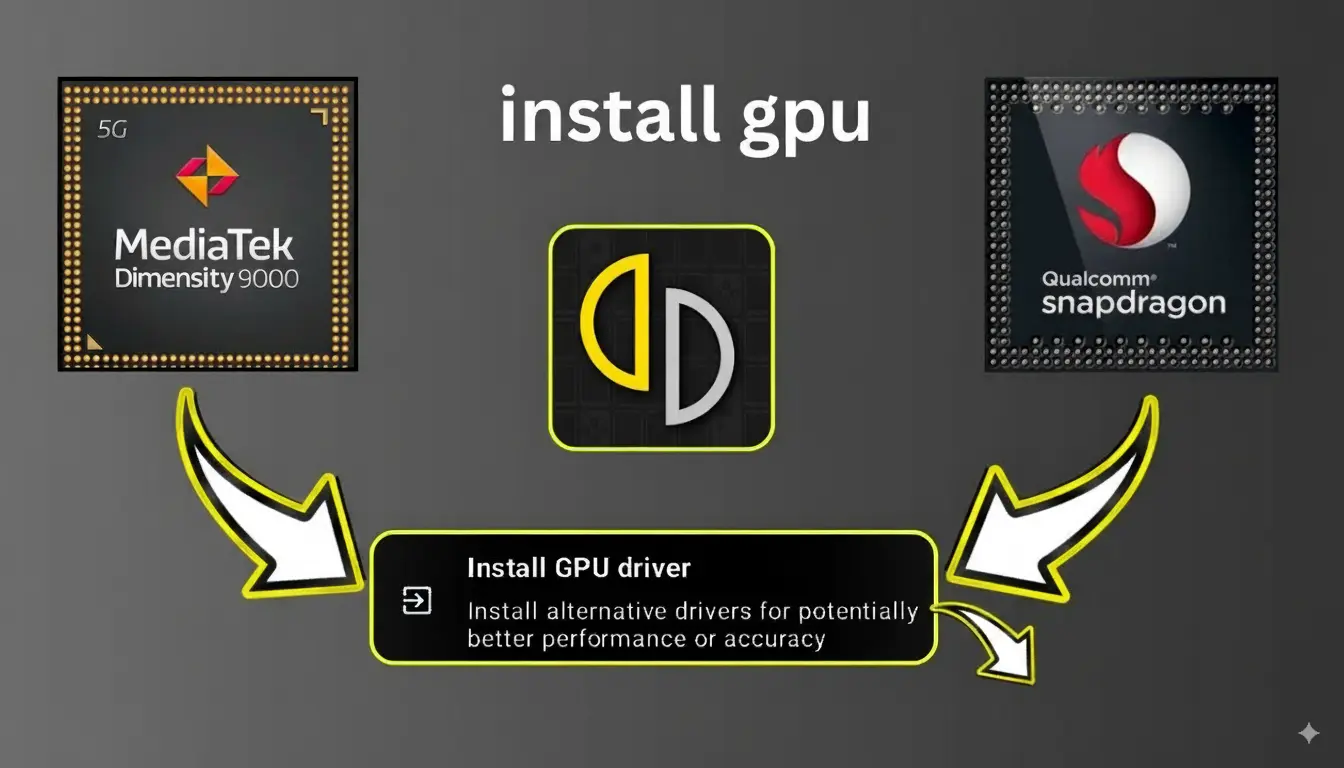
If you’re using the Uzuy Emulator (or any Nintendo Switch emulator) on your Android device, one of the biggest performance upgrades you can make is installing the right GPU driver. A proper GPU driver doesn’t just make games look better—it improves stability, reduces lag, and unlocks the full potential of your hardware.
Whether you’re diving into AAA blockbusters or enjoying classic indie favorites, optimized GPU drivers ensure smoother frame rates, fewer graphical glitches, and better compatibility across different titles. In this step-by-step guide, we’ll walk you through installing and configuring GPU drivers for the Uzuy Emulator on Android.
Why GPU Drivers Matter in Uzuy Emulator
The GPU (Graphics Processing Unit) is the heart of rendering in any emulator. Emulators like Uzuy replicate the complex architecture of the Nintendo Switch, which places heavy demands on your device’s graphics capabilities.
Here’s why keeping GPU drivers updated is essential:
- Performance Boost: Proper drivers optimize GPU utilization, giving you higher FPS and less stutter.
- Better Compatibility: Updated drivers improve support for modern games and Vulkan-based rendering.
- Improved Stability: They reduce random crashes and prevent common graphical glitches.
- Enhanced Visuals: Games render closer to their intended quality with fewer artifacts.
Outdated or mismatched GPU drivers, on the other hand, can cause low frame rates, frequent crashes, and distorted graphics—things no gamer wants to deal with.
Steps to Install Uzuy Android GPU Drivers
Follow these steps carefully to install or update GPU drivers for the Uzuy Emulator:
Step 1: Download a Compatible GPU Driver
- Identify your device’s GPU type (e.g., Adreno, Mali, or PowerVR).
- Download the correct driver package from a trusted source or official developer builds.
- Avoid random third-party sites, as unofficial drivers can cause instability.
Step 2: Launch the Uzuy Emulator
- Open the Uzuy Emulator app on your Android device.
Step 3: Access the Settings Menu
- From the home screen or in-game toolbar, tap Settings.
Step 4: Open the GPU Driver Manager
- Scroll down until you find GPU Driver Manager.
- This section lets you add, switch, or update GPU drivers manually.
Step 5: Install or Import the Driver
- Tap Install Driver (or Import Driver, depending on your version).
- Locate the GPU driver file you downloaded in Step 1.
- Confirm installation.
Step 6: Restart the Emulator
- Close Uzuy completely and relaunch it.
- This ensures the driver changes take effect properly.
Step 7: Verify the Installation (Optional)
- Return to the GPU Driver Manager to confirm the active driver.
- Alternatively, load a game and check for improvements in frame rate, visuals, or stability.
Conclusion
Installing or updating your Uzuy Android GPU drivers is one of the easiest ways to enhance your Nintendo Switch gaming experience on mobile. With just a few steps, you can reduce lag, improve visuals, and boost overall stability. Whether you’re running classic games or demanding titles, optimized GPU drivers ensure Uzuy Emulator performs at its best.