If you’ve been dreaming of playing Nintendo Switch games on your Android device, it’s now a reality with the Uzuy Emulator.
Uzuy is a powerful Nintendo Switch emulator designed specifically for Android, giving gamers the freedom to enjoy their favorite titles without requiring an actual Switch console. With its user-friendly setup and capabilities, Uzuy makes gaming on the go easier than ever.
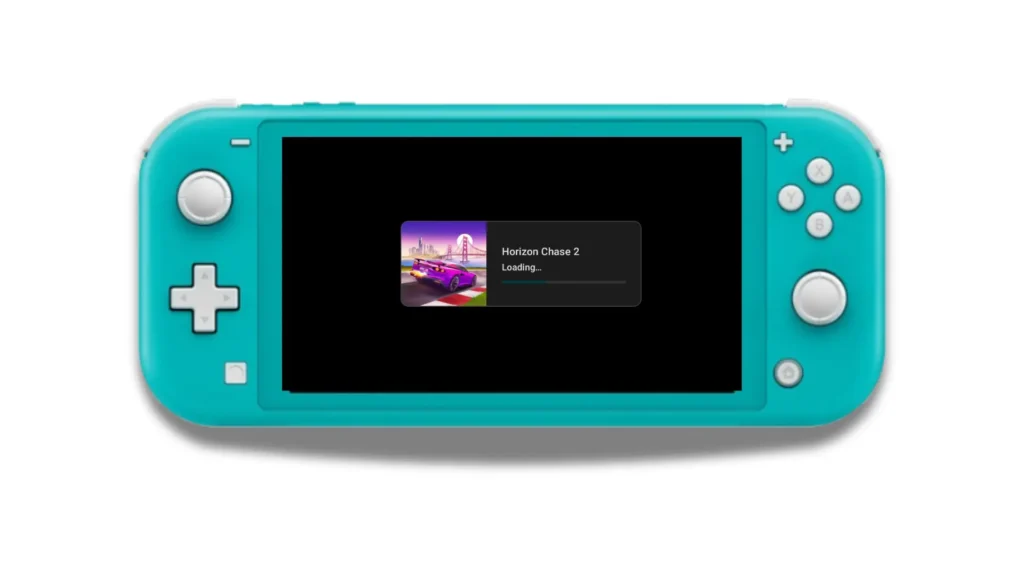
This guide will walk you through everything you need to know to set up Uzuy Emulator on your Android device, load your games legally, and start playing. Whether you’re a tech-savvy gamer or new to the emulation scene, this easy-to-follow guide will help you get started.
Step 1. Download and Install the Uzuy Emulator
The first step is downloading the Uzuy Emulator. You’ll need the latest version of the app to ensure compatibility with the Nintendo Switch games. Here’s how to do it:
- Visit the https://uzuymmjr.net website and download the Latest Uzuy MMJR and Uzuy Edge Emulator Android APK from the provided link. Check the version number to confirm it’s the latest release.
- Enable “Install Unknown Apps” on your Android device. This is usually available under your phone’s Settings > Security section.
- Once downloaded, open the Uzuy APK file to begin the installation process.
- Grant the necessary permissions (like storage access) when prompted. These permissions ensure the emulator can save your game data and configurations properly.
Step 2. Obtain Legal Game ROMs
A crucial (and legal) requirement for using the Uzuy Emulator is having access to game ROMs. The emulator itself doesn’t come with games due to copyright reasons. Here’s what you need to know about obtaining ROMs legally and avoiding piracy.
- Dump Your Own Games: If you own a Nintendo Switch, you can legally create backups of your purchased games using a homebrew application like “NXDumpTool.” This allows you to extract games into NSP or XCI formats compatible with Uzuy.
- Stick to Legal Sources: Avoid downloading ROMs from unauthorized websites, as this violates copyright laws and puts your system at risk.
By following these legal practices, you can play your favorite Nintendo Switch titles without worrying about legal repercussions.
Step 3. Set Up Your Keys (prod.keys and title.keys)
To decrypt and run Nintendo Switch games, Uzuy Emulator requires specific files known as prod.keys and title.keys. Think of these as licenses that allow the emulator to access the data in your game files.
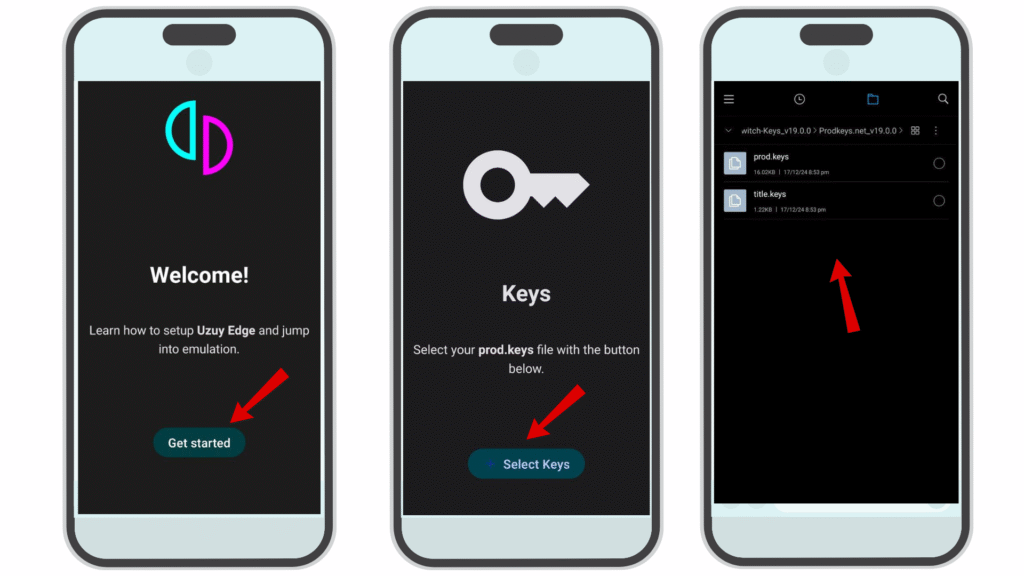
Here’s how to set them up:
- Extract these keys from your own console using trusted tools like `Lockpick_RCM`.
- Once you have the files, transfer them to your Android device.
- Open the Uzuy Emulator and go to Settings > Keys Setup. Locate the directory for your keys and upload both files.
Once the keys are in place, the emulator will be ready to decrypt and run your ROMs.
Step 4: Add Your Game Directory
Now that the emulator is installed and set up, it’s time to load your games. Follow these simple steps to add your game directory to Uzuy Emulator.
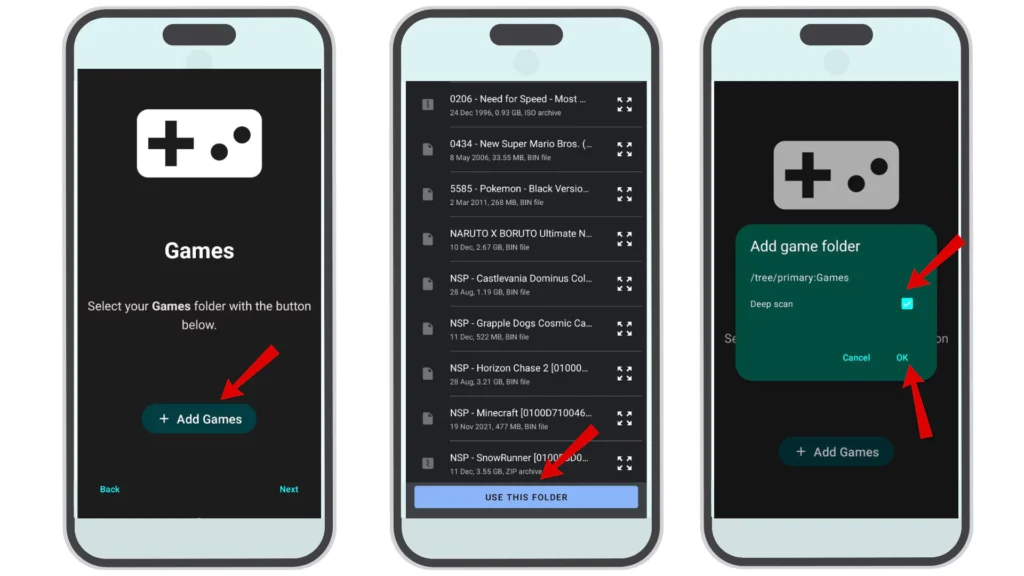
- Create a dedicated folder on your Android device where your game ROMs are stored (e.g., “NintendoSwitchGames”).
- Open Uzuy Emulator and head to Settings > Game Directory.
- Select the folder you created for your game files.
- The emulator will automatically scan the directory and display the compatible games in its library.
Your games are now visible in the emulator interface.
Step 5: Launch and Play Your Game
It’s finally time to play your favorite Nintendo Switch games on your Android device!
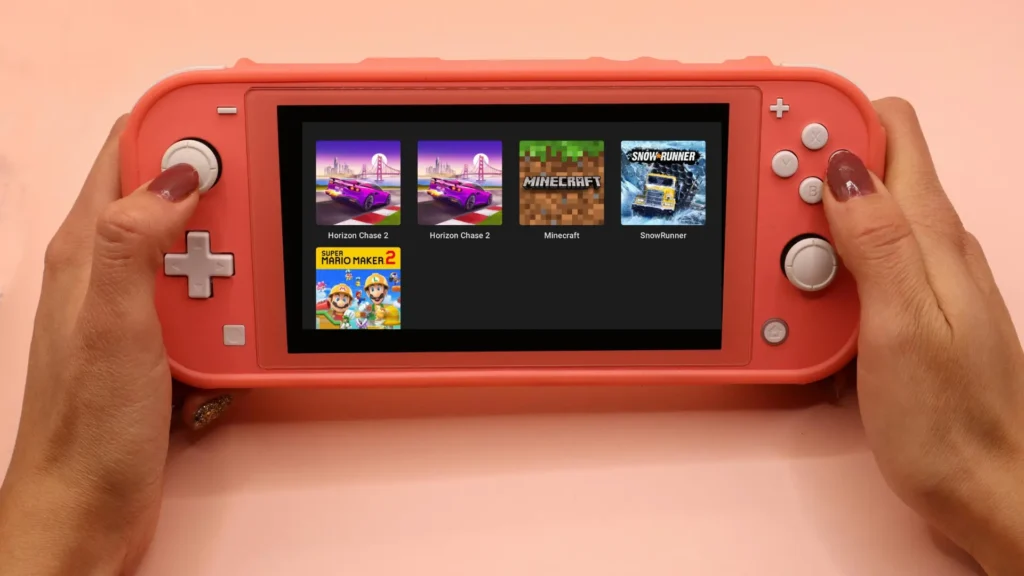
- From the Uzuy Emulator home screen, select the game you want to play.
- Adjust settings, such as graphics resolution and controller layouts, for an optimal gaming experience. Uzuy also supports external controllers, which can make gameplay smoother and more immersive.
- Tap Launch, and your game will begin!
Tip: Experiment with the emulator’s advanced settings to enhance performance, especially if you experience lag or graphical glitches.
System Requirements for Uzuy Emulator Android
Not all Android devices are created equal—running Nintendo Switch games smoothly requires some horsepower. Here are the recommended specifications for the Uzuy Emulator to ensure a seamless experience.
Minimum System Requirements (Android)
- Operating System: Android 5.1 (Lollipop) or newer
- RAM: At least 2 GB (basic performance, light testing only)
- Processor (CPU/GPU): Qualcomm Snapdragon 845 or an equivalent chipset with Vulkan
- Storage: Minimum 2 GB free space for emulator files + additional space for game ROMs
Recommended (For Smooth Gameplay)
- Operating System: Android 11 (or higher)
- RAM: 6 GB or more for stable performance and reduced lag
- Processor (CPU/GPU): Qualcomm Snapdragon 865 / 870 / 888 or newer (or equivalent flagship chipset) with strong Vulkan support
- Storage: At least 10 GB free space (games and firmware files can be large)
- Controller Support: External gamepad recommended for the best experience
If your device meets or exceeds these specifications, you’re good to go!
Uzuy Emulator Game Compatibility
Uzuy supports a diverse collection of Nintendo Switch games. Popular choices include:
- The Legend of Zelda: Breath of the Wild
- Animal Crossing: New Horizons
- Super Mario Odyssey
- Pokémon Sword and Shield
Check out more uzuy Game Compatibility List to see how your favorite games perform!
Optimizing Uzuy for Better Performance on Android
The Uzuy emulator already delivers great gameplay, but with a few tweaks, you can make it run even smoother—perfect for those demanding titles that push your device to its limits. Here are some simple yet powerful tips to get the best out of your emulator:
1. Tweak Graphics Settings
For smoother performance, especially on mid-range phones, try lowering the resolution scale in the graphics menu. Turning down effects like shadows, anti-aliasing, or post-processing can provide a significant FPS boost without significantly compromising visuals. Think of it as trading a little eye candy for buttery-smooth gameplay.
2. Enable Shader Caching
Nobody likes stuttering. By enabling shader caching, Uzuy stores precompiled shaders so the emulator doesn’t have to keep reprocessing them during gameplay. This makes a huge difference in games with complex graphics, keeping frame rates steady and reducing hiccups.
3. Use FPS Limiting
Limiting your frame rate isn’t a downgrade—it’s smart. Setting a cap (like 30 FPS) prevents your phone from overworking, keeping temperatures lower, and saving battery life. On weaker hardware, this can mean the difference between a choppy mess and a stable, playable experience.
4. Match with Better Hardware
If you’ve tried all the tweaks but still struggle, your device might be the bottleneck. Uzuy runs best on phones with powerful CPUs/GPUs—such as the Snapdragon 8 Gen 1 or newer. Stronger hardware not only boosts performance but also ensures your games stay future-proof.
By applying these optimizations, you’ll enjoy smoother, more stable, and lag-free gameplay on Uzuy, turning your Android into a pocket-sized console.
Happy gaming!
(FAQs) Frequently Asked Questions
Q:1 Is Uzuy legal to use?
Yes, using the Uzuy Emulator is legal. However, to comply with copyright laws, ensure that you obtain your game ROMs legally by backing up games you already own.
Q:2 Why do I need prod.keys and title.keys?
These keys are required to decrypt game files, enabling the emulator to run your ROMs. Without them, your games won’t function.
Q:3 Can I play games on low-end Android devices?
While Uzuy may function on lower-end devices, performance may vary significantly. For the best experience, use a device that meets the recommended system requirements.
Q:4 Does Uzuy support all Nintendo Switch games?
No. Some games may not be compatible due to hardware or software limitations. The compatibility list is consistently updated by the Uzuy team on their website.